

Page indexing is a fundamental element of SEO and the first step toward visibility in search engines like Google and Bing. Without proper indexing, your website simply won’t appear in search results, meaning potential customers may never find you.
Although the concept sounds simple, indexing issues are surprisingly common. In this article, we’ll break down how page indexing works, why it’s critical for rankings, and how to troubleshoot the most frequent problems.
What is Page Indexing?
Page indexing is a process in which search engines like Google discover, store and show information to users. It all starts with crawling. These search engines use what are known as “crawlers” to find content on the internet and collect key pieces of data that will be shown to users executing a search. This is all done in a flash via an automated process, starting with URLs before exploring links, images, text, and metadata.

Search engines will look for not only website content, but under the hood for signals like metadata when considering whether or not it will show the website in search results, and if so, how high up the rankings it will be shown, and for what keywords, or intent. Here are some examples of some of the metadata that a search engine will often look for:
- Title. The title tag is a very important piece of metadata for SEO and indexing. This is the concise and clickable headline that appears in the search engine results, indicating what information can be found on the page, if it’s well written.
- Meta Description. The meta description is often found beneath the title in search engine results, and describes the content of a page in a little more detail. As we know, Google will rewrite this completely if it feels like it, so don’t hyperventilate about it.
- Image Alt Text. Image alternative text describes the content of an image. This is crucial, as search engines cannot “see” images as we can, not to mention internet users with visual impairments. This is also a compliance requirement for HTML code, so you’d better get on it!
- Schema and Rich Microdata. Schema markup is a standardized code structure added onto website pages that helps search engines to quickly understand the content on the page. It provides summary context to the search engine while bolstering the details shown to users in the search results. Schema categories cover everything from products and services to recipes, events, people, and much more.
- Viewport. The viewport meta tag indicates whether a page will display correctly on different screen sizes. As mobile phone usage overtakes desktop usage, search engines are placing an increasing emphasis on mobile optimization. If your website isn’t optimized for mobile, don’t expect good treatment from search engines. Google’s main index has been based on its Mobile Crawler for years now.
- Robots. The robots meta tag provides important details to web crawlers about how the page should be indexed and whether the links on the page should be followed or not.
Once a search engine has crawled your site, it will store your pages in its index. Then, it will begin to sort all of your pages based on content, value, and a bazillion other things so it can serve up your pages quickly and for the right queries when the time comes.
Checking for Indexing
There are a couple of easy ways to check whether a page on your website is indexed (in Google) or not.
The simplest way is to check on Google Search. When searching for your full business name, your website should appear within the top few organic results. Typically, that’d be your homepage. To check the indexing for a specific page on your website, type the full URL of the page into Google Search following “site:”. Your search will look like this:
site:https://www.yourwebsitename.com/page-name
The more thorough, detailed, and accurate method for checking indexing is using Google’s Search Console (GSC). GSC is a free Google tool designed for website owners and managers to review performance, troubleshoot and fix issues.

If you haven’t already, set up Google Search Console (GSC) and use the ‘URL Inspection’ tool accessible via the search bar at the top of the page. GSC will then tell you whether or not your page is indexed, along with a full indexing report where you can closely inspect errors.
Alternatively, navigate to GSC’s ‘Pages’ report in the left-hand menu. Here, you’ll find every single indexing issue associated with your domain, along with a super vague reason and how many pages have failed this check. Each row item can be clicked to open a complete list of the affected pages.
Here’s a summary of common indexing errors:
- Blocked by robots.txt: Indexing is disallowed for a page in the robots.txt file.
- Not found (404): The page could not be located at the original URL for a myriad of reasons.
- Excluded by ‘noindex’ tag: Google has been directed not to index the page, due to a “noindex” meta tag in the <head>.
- Crawled – currently not indexed: Google has found the URL, but hasn’t indexed it, often due to poor content, duplicate content, being a redirect, a 404, or tons of other technical issues.
- Discovered – currently not indexed: Google knows the URL exists but hasn’t crawled it yet. Be patient, Google will likely revisit it later.
- Server error (5xx): The website server had a meltdown and can’t show you the page for whatever reason. A 5xx error is a web server error and is often temporary.
- Page with redirect: A page that’s redirecting users to a different page. In this case, Google will try to index the destination and not the original URL.
- Duplicate without user-selected canonical: Google has found duplicate or near-duplicate content, but the website hasn’t indicated which version it prefers.
- Alternate page with proper canonical tag: Google has found duplicate or near-duplicate content, and correctly identified the preferred version.
Not All Pages Need Indexing
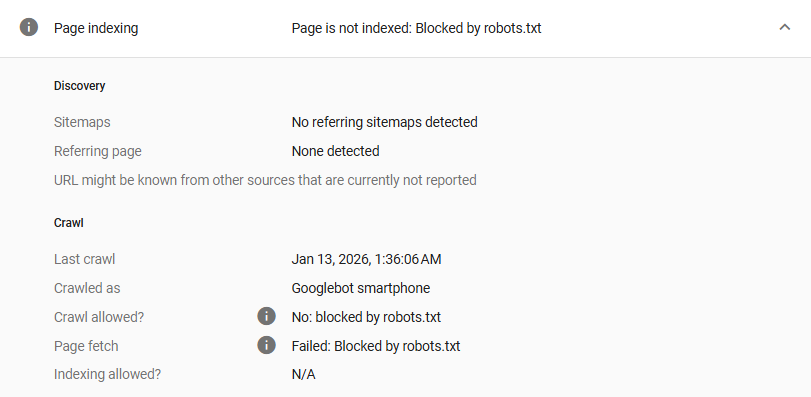
If you’re looking at GSC’s ‘Pages’ report for the first time, chances are you’re alarmed by the inevitable list of indexing issues. But don’t panic. Not all pages on your website need to be indexed.
Learn about Google’s EEAT criteria when considering your website’s indexing status.
There are a number of pages on your website that will create low value or duplicate content on them. These could be blog category pages, tags pages, author pages, portfolio category pages, and more. Then there are internal, private, or administrative pages like cart pages, login pages, policy pages and others. Finally, there could be other content on your website that just isn’t relevant anymore, with no need for indexing. These could be duplicates of existing pages, test pages, and old pages with no use.
If a page is not accessible from your website, chances are it doesn’t need to be indexed. Part of maintaining a healthy website is blocking indexing when necessary (more on that further down).
Why Your Website Isn’t Indexed

If your website or certain pages aren’t being indexed, there are a few key issues you can check for.
1. Blocking Indexing
Don’t laugh, it totally happens to the best of us. If a page on your website (or your entire website!) isn’t being indexed, it could be that you’re blocking Google’s ability to do so. A robots.txt file is a file inserted into a website that provides instructions to search engines about which pages to index or not index. Using various rules, the robots.txt file is a big help by preventing crawlers from wasting time on unnecessary pages, easing server strain and improving overall efficiency. Or, more commonly, you’ve left a setting on that sets a sitewide noindex flag in the robots meta tag.
2. Not Adhering to Google’s Guidelines
Google has a number of webmaster guidelines that all websites should follow to remain in good standing with Google. The gist of these guidelines is focused on avoiding spam and meeting technical requirements. This is quite rare in our field as we don’t work with spam or phishing sites, but it does happen.
First and foremost, ensure the content on your website is designed for people first. That means using helpful headings, descriptive detail, images and alternative text and link text, while avoiding “keyword stuffing” in an attempt to trick search engines.
3. Not Optimized for Mobile
Google’s indexing criteria prioritize highly mobile-optimized websites since website traffic from phones has surpassed that of desktop devices, with no signs of slowing down. User experience is crucial, so a web page that doesn’t fit on a small screen or takes ages to load (most important) is a red flag for Google. Learn more about optimizing your website for mobile phones, and get in touch with your web developer if your site is having issues on small screens.
This issue will generally not lead to a non-indexing issue, but it will certainly lead to a ranking penalty.
4. No Sitemap
A sitemap is a list of all pages on your website that can be submitted to Google via a simple XML file. The sitemap helps Google make sense of and index your content. Without it, Google might not be able to find some important pages on your website. These days, website menus and navigation are very search engine-friendly, so they are able to deep crawl the website. Many years ago, some people thought that Flash was a great website builder while not paying attention to the fact that search engines couldn’t see beyond the source code or inside the Flash animated files. Good for games, absolute garbage for websites.
If your website is being blocked by robots.txt or you’re struggling with other indexing issues, reach out to an SEO professional for help.
How to Request Indexing
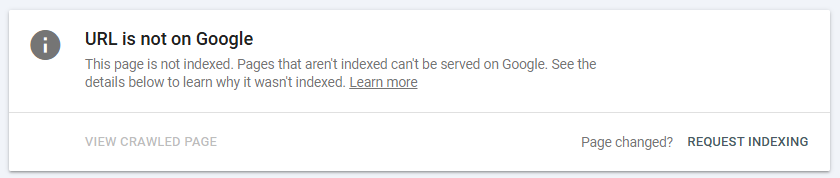
Thanks to Google Search Console, requesting indexing for specific pages is easy.
To request indexing (a great practice for new content or articles published to your website), open GSC and use the ‘URL Inspection’ tool. After you’ve inspected a URL, GSC will tell you whether your page is indexed or not. If it isn’t, all you need to do is click ‘Request Indexing’. If there aren’t any issues, your page will be indexed – just don’t expect it to happen right away.
How to Block Indexing
If you’d like to block indexing for a page on your website, there are a few options. If you know your way around the website code, a “noindex” meta tag can be inserted into the <head> of the page. Alternatively, you can add the page to your robots.txt file along with instructions to block.
Another method for blocking indexing is by using the settings in your content management system (CMS). Most website builders, including WordPress, will have built-in options for blocking search engines from crawling your website. The only sensible time to block a site is while you are developing a new one.
Other than that, you can also use free plug-ins like Yoast to block select pages from being found using the Yoast block under each page in your WordPress website.
Are you experiencing issues with your website indexing in Google and would prefer an experienced SEO professional take a look? Contact Caorda today to inquire and chat with us about the symptoms that you’re experiencing.