
When you need to remove a number of duplicates in your inbox this will help. This process will require having Outlook Classic or Outlook Office 365.
Select your Inbox
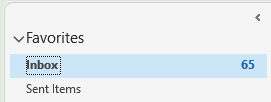
First you will want to start by making sure that you have the inbox containing the duplicates selected. Click on your inbox on the left navigation of outlook.
Click Clean Up
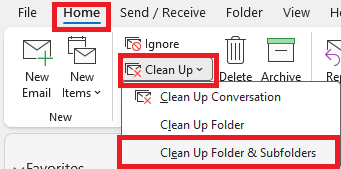
With your inbox selected, now navigate to Home in the top ribbon bar, then select Clean Up. This button will expand a menu, from there select Clean Up Folder & Subfolders.
If you do not see this option, See below:
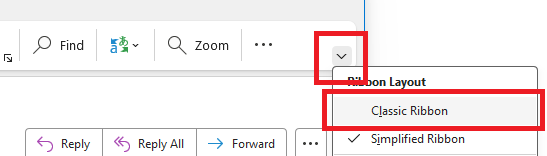
Find the small arrow on the top bar, and change the Ribbon to Classic. The classic option should be selected. If it is not, please select Classic Ribbon. Then, you can select the above Home option.
Proceed by clicking the Clean up button mentioned above.
View Settings
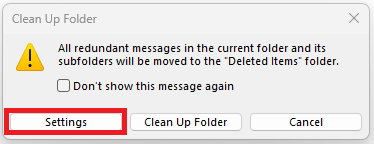
This will present a pop-up window. Select Settings. Note: If you do not see a pop-up appear you can still navigate to your settings by going to File then Options in the bottom left.
Verify Settings
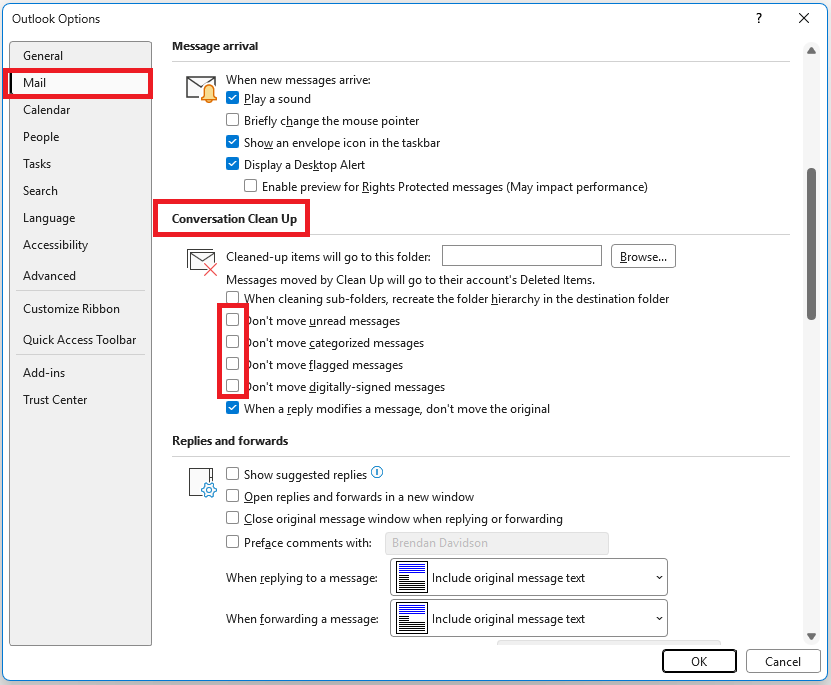
Once you are in the settings you will want to remove some check boxes. Within the Mail section on the left, scroll down until you see the heading Conversation Clean Up on the right hand side. Un-check: Unread Messages, Categorized messages, Flagged Messages, and Digitally-signed Messages. When you are done, Click Okay in the bottom right of the pop-up to save your settings.
Run the Clean Up
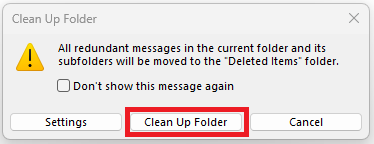
With your new settings saved from the previous step you can now proceed. Select Clean Up Folder. The rest of the process is automatic. Outlook will process your inbox and remove any duplicates found.