
This guide will help you to setup a new user’s account in Serv-U.
This Guide is intended for a Domain or Group Administrator to create a new User. The guide goes through the detailed method.
A guided method can be done via the “Wizard…” however the wizard does not offer any granular options when it comes to permissions
Onto the full details.

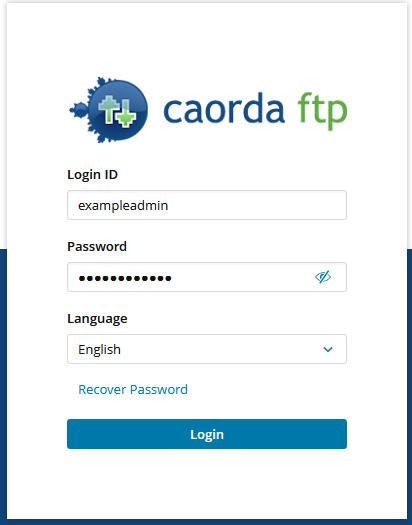
- Login to your Administration Dashboard
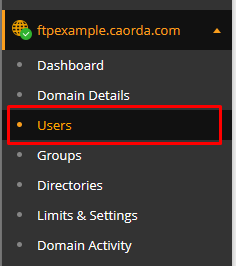
- Select Users section in the left navigation pane
- From the User Sections, click Add.

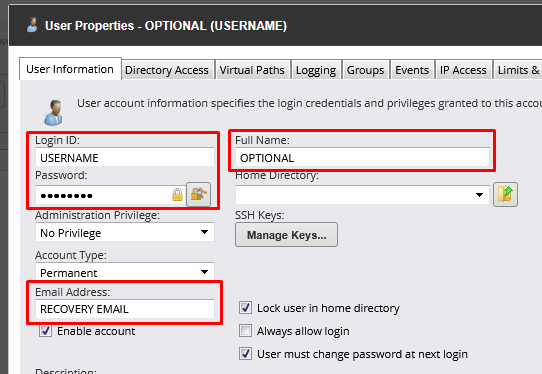
- Enter the following details
- Login ID
- Password
- Full Name (OPTIONAL)
- Email Address (For account recovery)
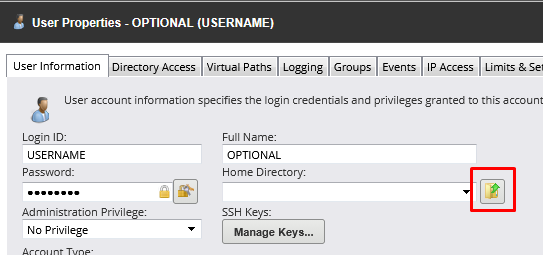
- Click on the home directory browser button for the user (you can create a new home directory at the same time)
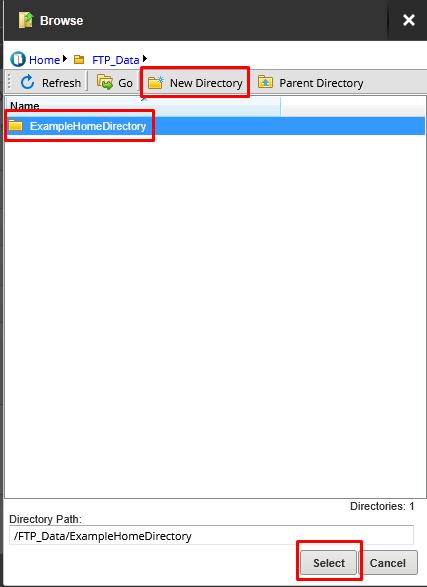
- Navigate and select the home directory for the new user, click on “New Directory” if folder you want does not exist. Once selected click on the Select button
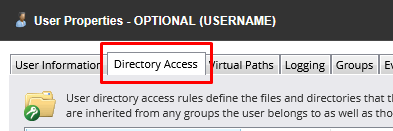
- Now click on the Directory Access tab, in step 6 you specified the home directory but this tab gives the user access to it.
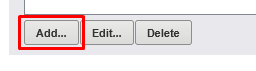
- Click on Add.. at the bottom of the tab to assign rights to the folder
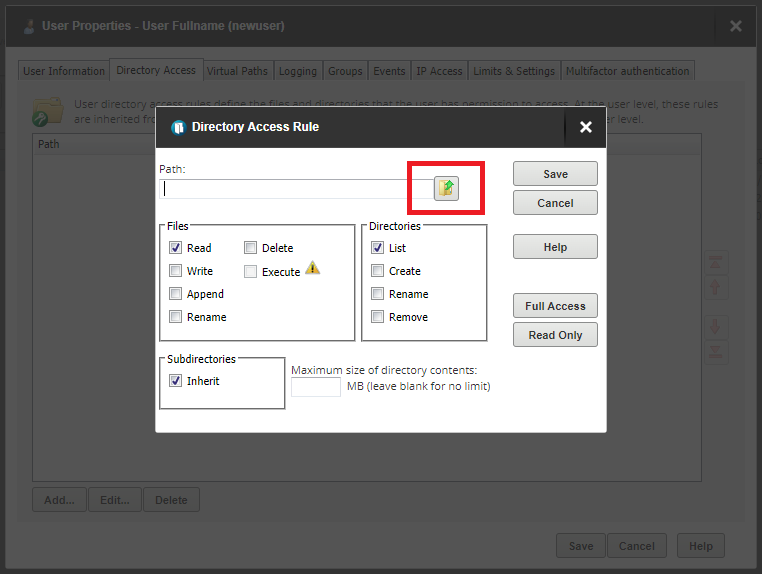
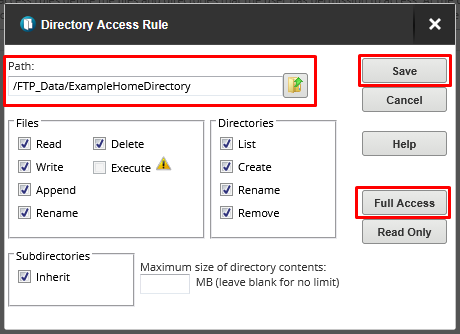
- The directory access rule window will pop up. From here we will configure which folders this user has access to. Click on the folder icon beside the Path field to select the directory.
- The directory selection browser will pop up again. Select the same directory you selected/created in previous steps then click Select.
- With the Path populated now click Full Access, unless this user needs different permissions. Then click Save.
- P.N. – You may repeat the Directory Access steps to give more granular permissions to users (e.g. Giving a user Read Only access to another user’s folders while still having Full permission to their own folders)
- All the basic settings have now been set. Click Save to create the user.
- Congratulations you have created a new User for your FTP/SFTP Service.