
To completely disable the Spam Filtering, for testing or other purposes, this guide will help you turn the feature off. Please note that this will require having access to an administrative account for your domain. For any questions or more information, please reach out to our support team.
Getting Started
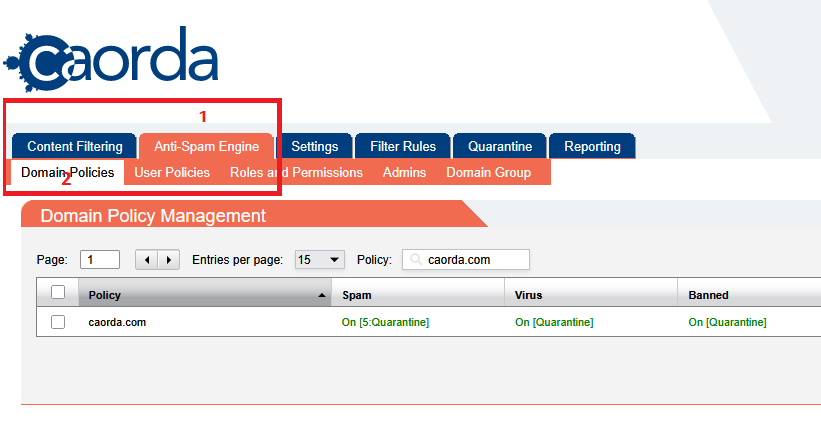
To turn off the spam-filtering, login to the spam filter (https://mail.caorda.com) as an Administrator. After login, navigate to Anti-Spam Engine in the top Menu. Then, select Domain Policies.
Need your password? See our guide on how to access your login: How do I login to my Spam firewall?.
Modify your Domain
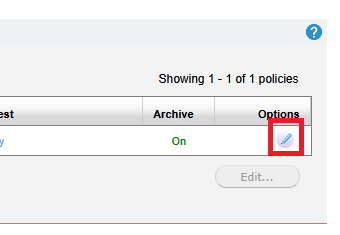
Within the list of domains your Administrator can modify, select the Pencil icon beside the Domain you would like to modify.
Toggle Filtering
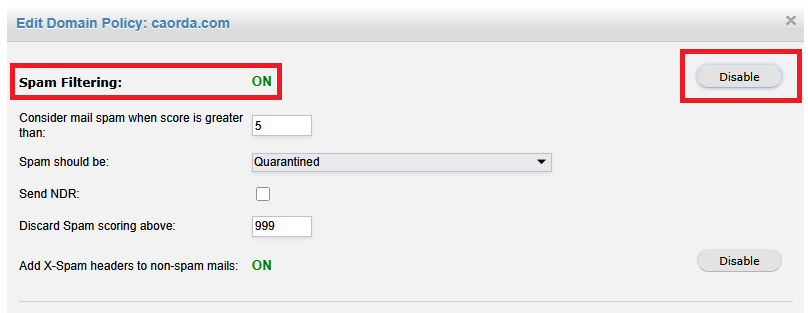
The Domain Policy window will display the current status of your Spam Filtering. To turn this feature off click the Disable button.
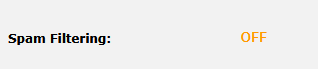
You will see the display change to an OFF status.
Save your Changes
After toggling the setting to OFF we will want to make sure to save our changes. Click Apply in the bottom right to apply this setting change to your domains policy. Your Spam filtering is now disabled and the firewall is no longer filtering your domains emails.