Caorda Logo
  • Design
    • Design
    • Website Design
    • Branding & Logo Design
    • Print Design
    • Our Design Process
  • Development
    • Development
    • WordPress Development
    • Website Development
    • Mobile Apps
    • Software Development
    • Database Development
  • Hosting
    • Hosting
    • Web Hosting
    • Email & Exchange Hosting
    • Secure File Hosting & FTP Solutions
    • Managed VPS Hosting
  • Digital Marketing
    • Digital Marketing
    • SEO Services
    • Google Ads & SEM
    • Social Media Marketing Services
    • Blog & Article Writing
    • Email Marketing Services
  • About Us
  • Blog
  • Careers
  • Our Work
  • Pay an Invoice
  • Support
  • Contact
  • +1.250.598.6772
  • COVID-19 Policy
Caorda Logo
  • Design
    • Website Design
    • Branding & Logo Design
    • Print Design
  • Development
    • Website Development
    • Mobile Apps
    • Software
    • Databases
  • Hosting
    • Web Hosting
    • Emails
    • Secure FTP
    • Managed VPS
  • Digital Marketing
    • SEO Services
    • Google Ads & SEM
    • Email Marketing
    • Social Media

FAQ

7
  • The new Caorda Webmail
  • What version of Outlook am I using?
  • How to Pay an Invoice
  • How do I receive Maintenance Notifications?
  • Spam – Email Rate Limit
  • Does Caorda offer cPanel ?
  • Where is my data located?

Setup a Device

17
  • [IMAP] iPhone or iPad (IOS 16+)
  • [IMAP] iPhone or iPad (IOS 18+)
  • [IMAP] Android devices (Android 12+)
  • [IMAP] Mac Mail
  • [IMAP] Mozilla Thunderbird
  • [IMAP] Outlook Office 365 for Mac
  • [IMAP] Outlook Office 365 for Windows
  • [IMAP] Outlook for Android Devices
  • [IMAP] Outlook for iPhone or iPad
  • Setup Default Folders on iPhone or iPad (IOS 18+)
  • I can’t see all my folders in Outlook
  • Archive my emails in Outlook
  • [POP] GMAIL
  • [POP] Mac Mail
  • [POP] Outlook Office 365 for Mac
  • [POP] Outlook Office 365 for Windows
  • [POP] Outlook 2013-2016 for Windows

Caorda Mail

7
  • Two-Factor Authentication for Webmail
  • Setup Auto-Response
  • Forward Email to Another Address
  • Add a Signature
  • How do I access Webmail?
  • How to change my Password
  • Password Policies

Caorda Mail Administration

8
  • Getting Started
  • Create a User
  • Change a Users password
  • Change User Defaults
  • View and Manage user connections
  • Enable Plus-Addressing
  • Add a User Alias or Distribution Group
  • Remove a User

Spam

7
  • How do I manage my Quarantine?
  • How do I mark an email as Safe?
  • Can you block an entire country from sending you Email?
  • How do I block an email address or domain?
  • How do I manage my settings?
  • How do I login to my Spam firewall?
  • How are rules inherited?

Email Hosted Exchange

7
  • How do I access Webmail?
  • EXCHANGE – Setup my Mailbox on an Apple mobile device (IOS 16+)
  • EXCHANGE – Setup in Outlook 365 for Windows
  • Enable Contacts on the Outlook App on Android
  • EXCHANGE – Setup Outlook 2010-2016
  • EXCHANGE – Setup my Mailbox in Outlook on an iOS Device
  • EXCHANGE – Setup my Mailbox in Outlook on an Android Device

FTP

12
  • How do I check my disk usage?
  • Add users to a Group
  • How to create a User
  • How to create a Group with Directory Access
  • Enforce SSH Key based Authentication for a User
  • How to receive files using the File Sharing option
  • How to Send files to a client using the File Sharing option
  • Reset your own Multi-Factor Authentication as a User
  • Reset a single User’s Multi-Factor Authentication
  • Setting up Multi-Factor Authentication for a Domain Group
  • Setup Multi-Factor Authentication for a Single User
  • Setup SSH Key Authentication for a User

Website

2
  • What is Caorda’s WordPress Maintenance Plan ?
  • Why am I not getting emails from my Caorda QA site ?
  • Home
  • Caorda Support
  • Setup a Device
  • [IMAP] Mozilla Thunderbird
View Categories

[IMAP] Mozilla Thunderbird

Follow these steps below to setup your mailbox in Thunderbird using the IMAP system.

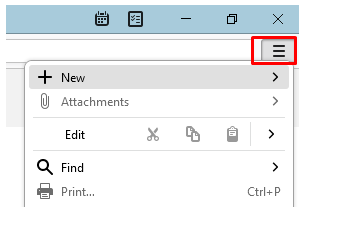
  1. Open Mozilla Thunderbird and click on + New from the Hamburger menu in the upper right of Thunderbird.
     
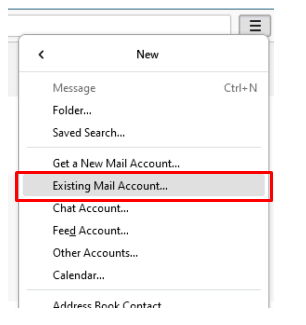
  2. Select Existing Mail Account in the Add New menu.
     
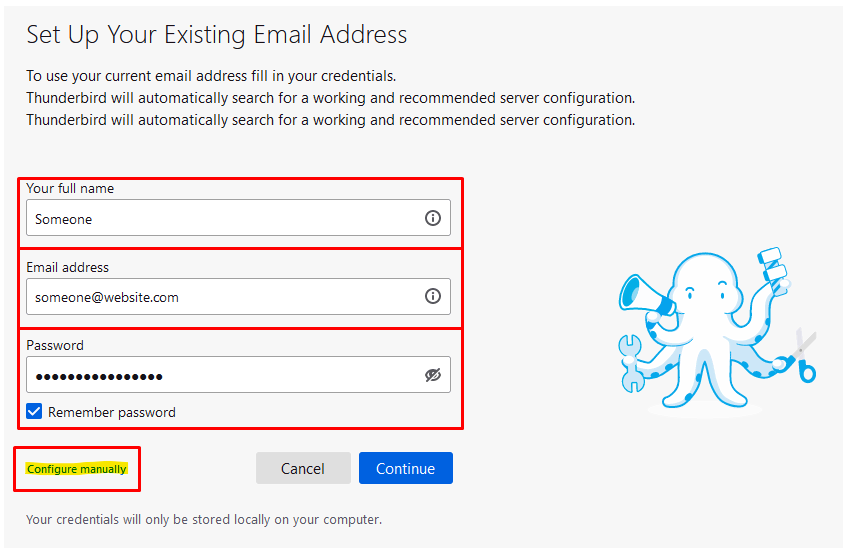
  3. In the Set Up Your Existing Email Address page enter in Your full name (This is the displayed name people will see when you email them), your new Email Address, and the Password for this new Email.

    Before clicking Continue, Select Configure Manually on the bottom left below the password field.
  4. After selecting Configure Manually, fill out the expanded window with the following details, making sure that the Username your Email address.
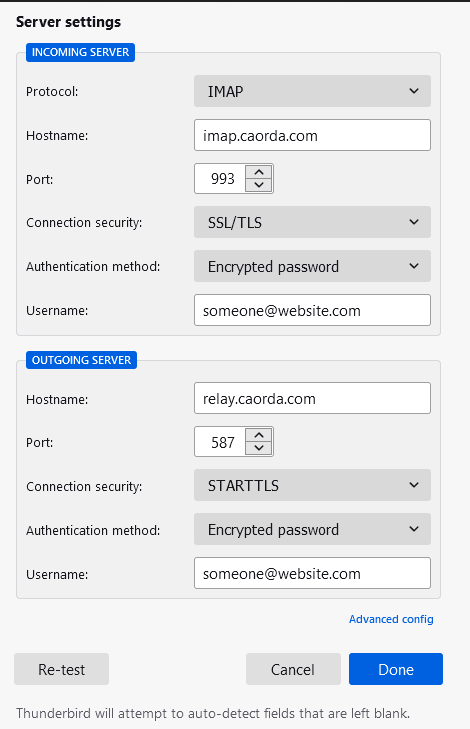
     

    • Under Incoming Server
      • Protocol: IMAP
      • Hostname: imap.caorda.com
      • Port: 993
      • Connection security: SSL/TLS
      • Authentication Method: Encrypted password
      • Username: your email address
    • Under Outgoing Server
      • Hostname: relay.caorda.com
      • Port: 587
      • Connection security: STARTTLS
      • Authentication Method: Encrypted password
      • Username: your email address
    • After entering in these details, click on Done.
       
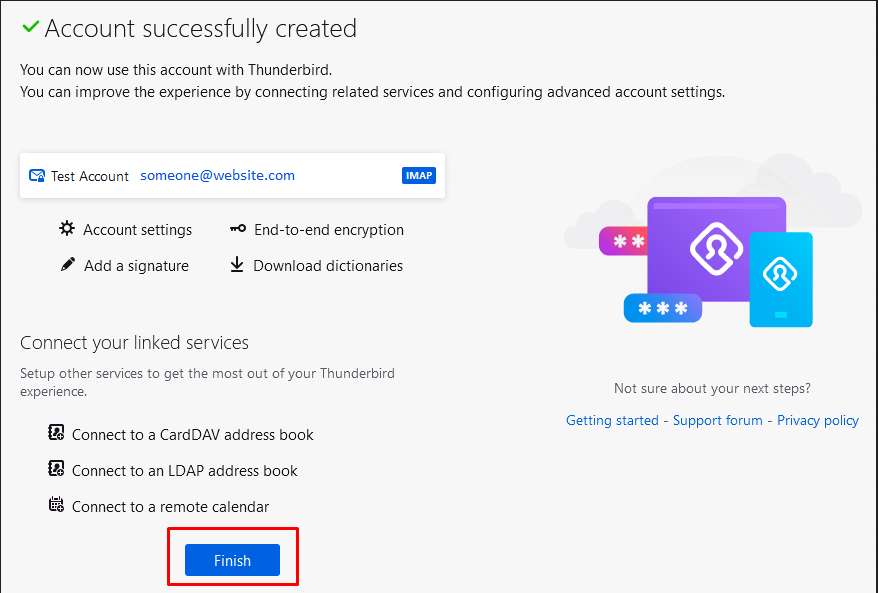
  5. Assuming all the details were accurately entered you will see the Thunderbird success screen. Click on Finish and your account has been setup
IMAP, Thunderbird

Didn’t find what you were looking for?
Need more help?

You’ve got it! We’re here for you

Contact Support

Or Call: 250.598.6772

Updated on January 23, 2026
[IMAP] Outlook Office 365 for Windows[IMAP] Outlook Office 365 for Mac
  • This field is for validation purposes and should be left unchanged.

Our Address

401–3795 Carey Rd. Victoria, BC V8Z 6T8

Say Hello

  • +1 250.598.6772
info@caorda.com
  • Get Support
  • Our Services
  • Contact Us
  • LinkedIn
  • Facebook
  • Instagram
©2026 Caorda | Privacy Policy
Client Login
  • Design
  • Development
  • Hosting
  • Marketing